Installation
Use a Windows x64 PC running Windows 10 version 2004 or later, or Windows 11.
- Open Download and complete its Work.ink steps. The download flow and the app’s access-key flow are separate.
- Compare the installer’s SHA-256 with the value on Download if you want to verify the file.
- Close the installed Hub before updating, then run Soraness Hub.exe and follow setup.
- Keep an internet connection for sign-in and WebView2 setup if needed. The installer is currently unsigned.
Updating and uninstalling preserve saved accounts, profiles, settings, and capture records. An update notice is separate from your license status and expiry.
Activating access
Sign in with Discord or email inside Hub and open Subscription. Both options provide access to all features on one registered PC.
QR Ph · ₱99 / 30 Days
Start checkout in Hub. Use a supported banking or wallet app to pay through PayMongo, then return to Hub and choose Check payment.
Paid access begins after PayMongo confirms your QR Ph payment. Returning from the browser does not prove payment. If checkout is still awaiting payment, reopen the same checkout rather than starting another.
A confirmed renewal adds 30 days to your remaining paid time. Upgrading from key access starts 30 paid days; unused key time is not added.
Work.ink · 12 hours
Choose Get key in Hub, complete Work.ink’s steps, and copy the generated key. Paste it into Your key and select Activate key.
Access begins after successful activation. Redeem a fresh key within five minutes. Key time cannot stack; activate another only after expiry.
Key activation is unavailable while paid or administrator access is active, or when access is blocked. Use the expiry shown in Subscription to know when another key is eligible.
Accounts
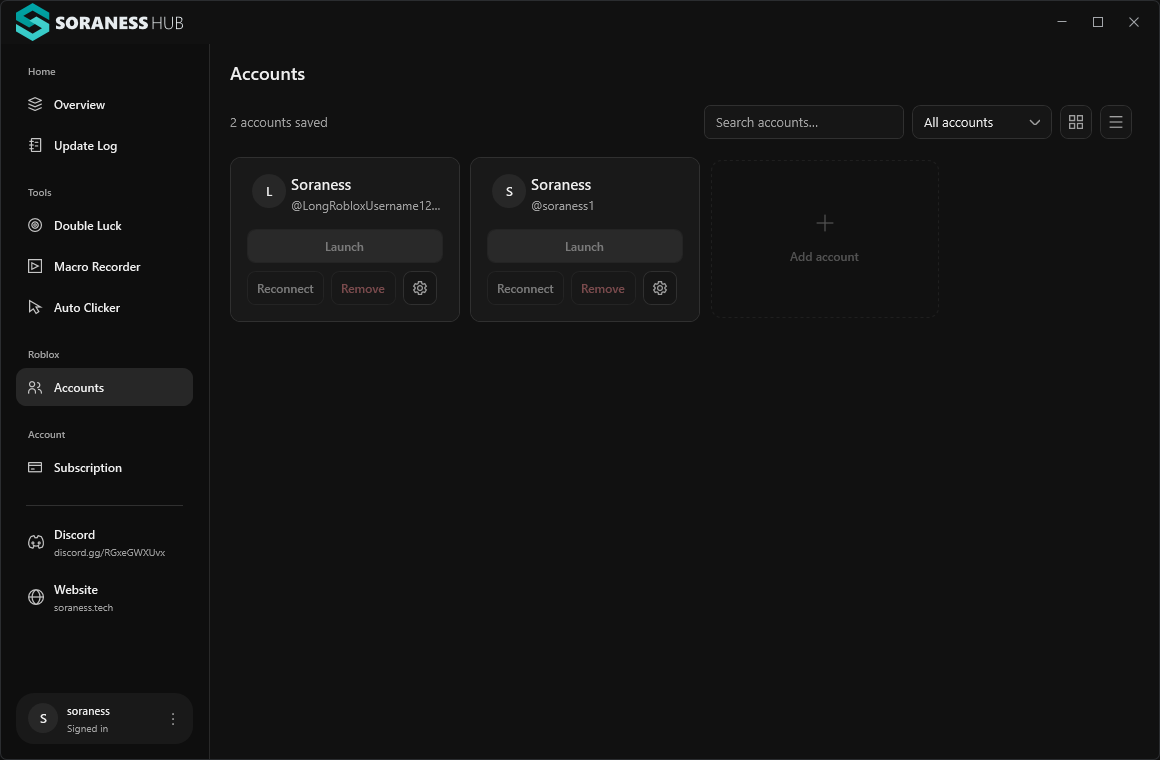
Add an account through Roblox’s login page inside Hub. Search or filter your saved profiles, then use each account’s Launch or Reconnect controls. Multiple launched accounts can play simultaneously while Hub remains open.
- Close existing Roblox clients before the first launch after opening Hub.
- Launch accounts one at a time and keep Hub open for multi-instance use.
- Use the account settings control for Memory and Anti-AFK controls. Set a physical RAM limit for each account or use the one-time memory cleanup action. A low limit may slow Roblox; it does not limit all memory allocations. Anti-AFK is optional and remains experimental.
- Reconnect through Roblox sign-in when a saved session needs attention.
View the Accounts pageMacro Recorder
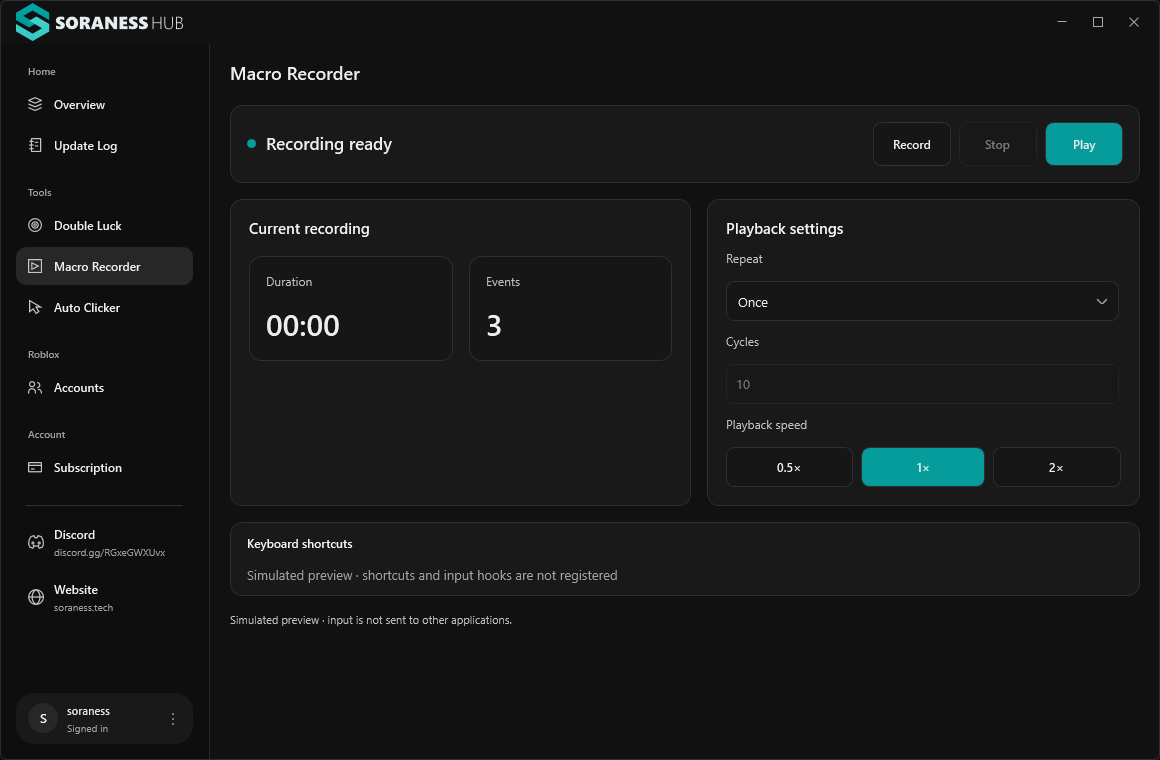
Use Record → Stop → Play to replay mouse movements, clicks, scrolling, and keyboard actions with their timing.
- Choose Once, Fixed cycles, or Until stopped. Playback speed supports 0.5×, 1×, and 2×.
- Use Ctrl+Shift+F6 for recording, Ctrl+Shift+F7 for playback on this tool page, and F8 to stop globally. Hub shows shortcut conflicts beside its controls.
- Playback starts after a cancellable three-second countdown. Switch to your target app during that time.
- One recording stays in memory and is discarded on sign-out or exit. Replacing it requires confirmation; recordings are not exported.
- Recording stops at ten minutes or 250,000 events. Record only actions you intend to replay; avoid entering passwords.
Keep the target app visible. Elevated apps, protected screens, and minimized or background windows are not supported targets.
View the Macro Recorder pageAuto Clicker
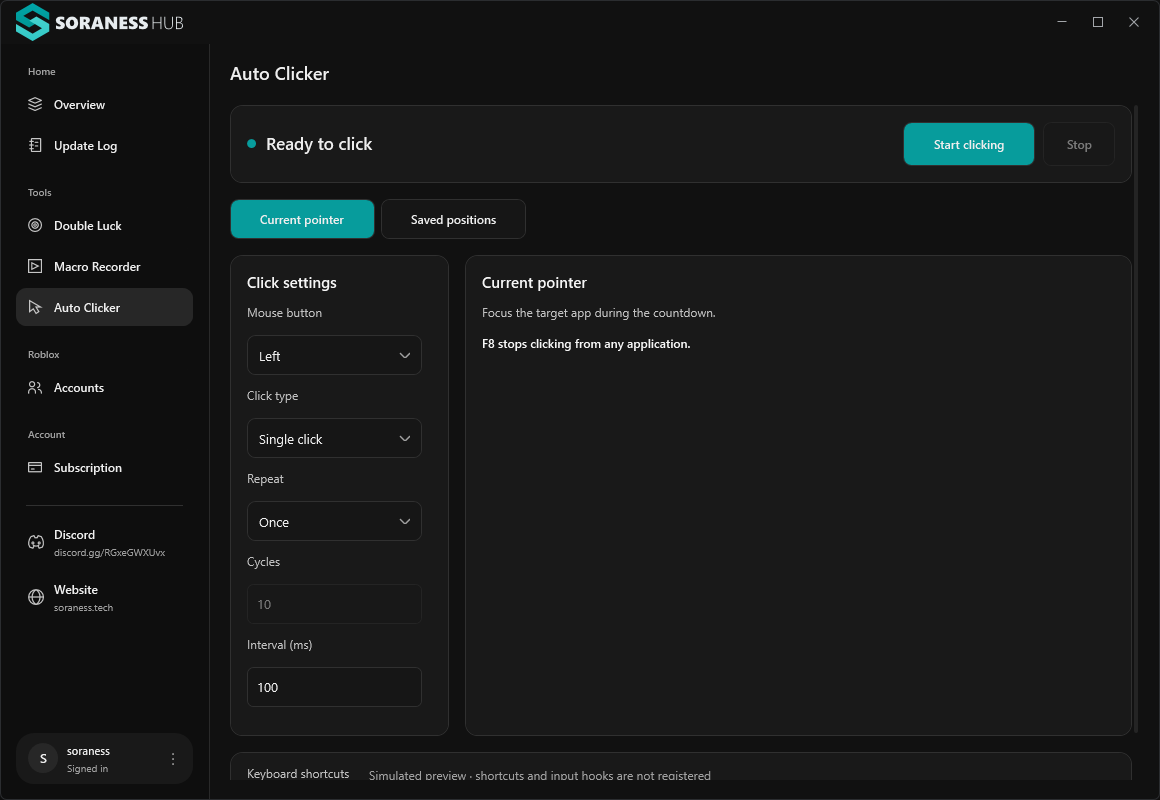
Choose Current pointer or Saved positions. Set the mouse button, single or double click, and repeat mode.
- Current pointer uses one interval; the default is 100 ms.
- Saved positions run in order. Pick a position or enter desktop coordinates, set its delay, and add it. Edit, reorder, or remove positions as needed.
- One cycle covers the entire saved-position sequence. Choose Once, Fixed cycles, or Until stopped.
- Use Ctrl+Shift+F7 on the Auto Clicker page to start or stop, or F8 to stop from any application. Clicking begins after a cancellable three-second countdown.
- Settings are saved locally per signed-in user and never start clicking automatically. Review positions and confirm the display layout after a monitor or scaling change.
Only one recording, playback, or clicking operation runs at a time. Anti-AFK input is suspended during it. Access loss, sign-out, desktop locking, display changes, or input failure stops automation; renewed access never resumes it automatically.
View the Auto Clicker pageTroubleshooting
The download flow is unavailable
Return to Download and try Work.ink again later. Installer buttons use the configured Work.ink flow. Keep checksum verification separate from access-key activation.
Payment is pending or needs attention
Use Check payment in Hub before creating another checkout. Reopen an existing unpaid checkout when available. If Hub shows “Payment received · access needs attention,” contact support; a verified payment does not automatically override an access block.
A key will not activate
Check that the key came from Get key inside Hub and was generated within five minutes. Expired or reused keys cannot create new access. Check your existing expiry and eligibility in Subscription.
Automation or capture has stopped
Check Subscription, your desktop/display layout, and any inline error in the tool. Restore access or review the positions, then start explicitly. F8 stops automation. Shortcut conflicts are shown in Hub.
Account launch or reconnect needs help
Reconnect through Roblox sign-in. Close existing Roblox clients before the first launch after opening Hub, launch one account at a time, and keep Hub open.